Getting Started
This documentation details how users can use the Signal Analysis Tool, the different functions, and the different features.
Load Test
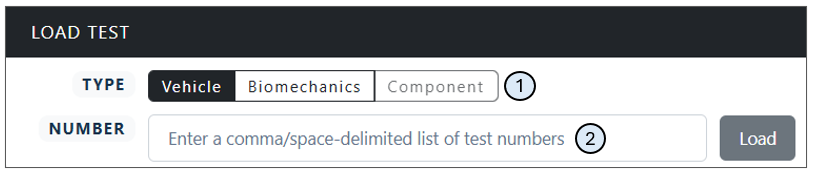
-
User can select the desired NHTSA test database
-
User can select the test number for their desired test from the selected NHTSA database
View Documentation
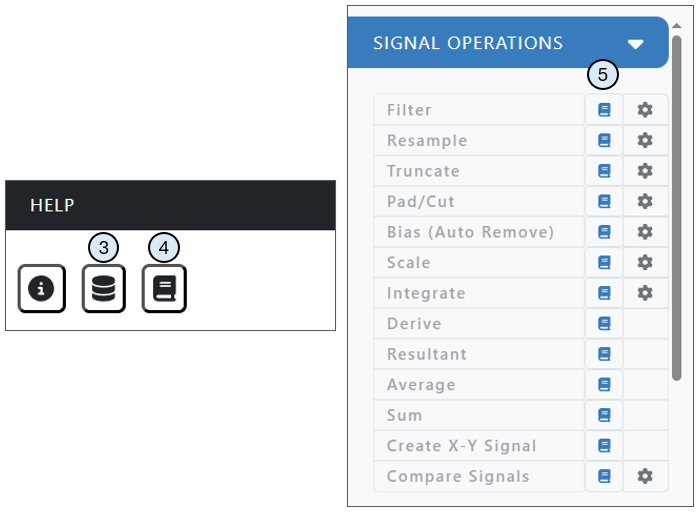
-
Icon will take user to the NHTSA research testing database
-
Book icon will take user to the documentation section of the website
-
Book icon next to signal operation will take you to that signal operation's specific documentation
Function Settings
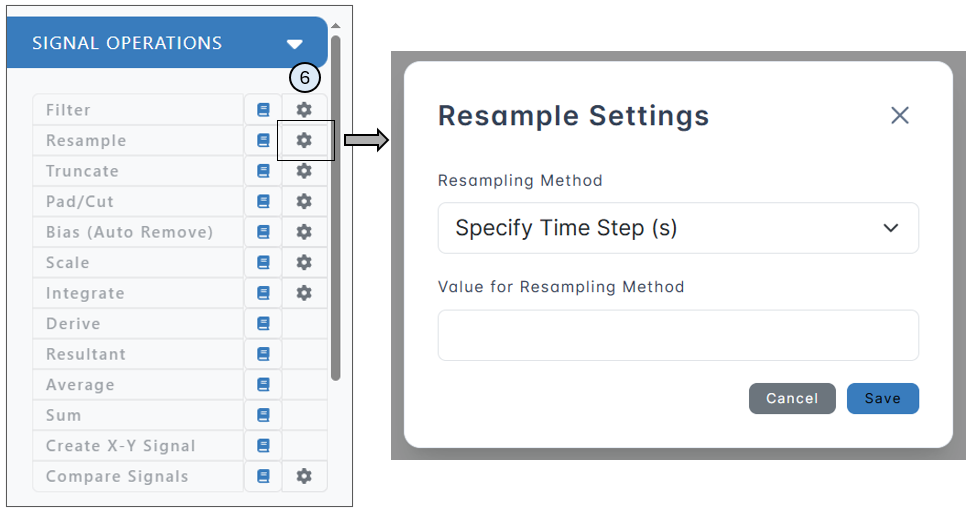
- Settings icon next to function will display required input user must select before function can be performed
Loading Test
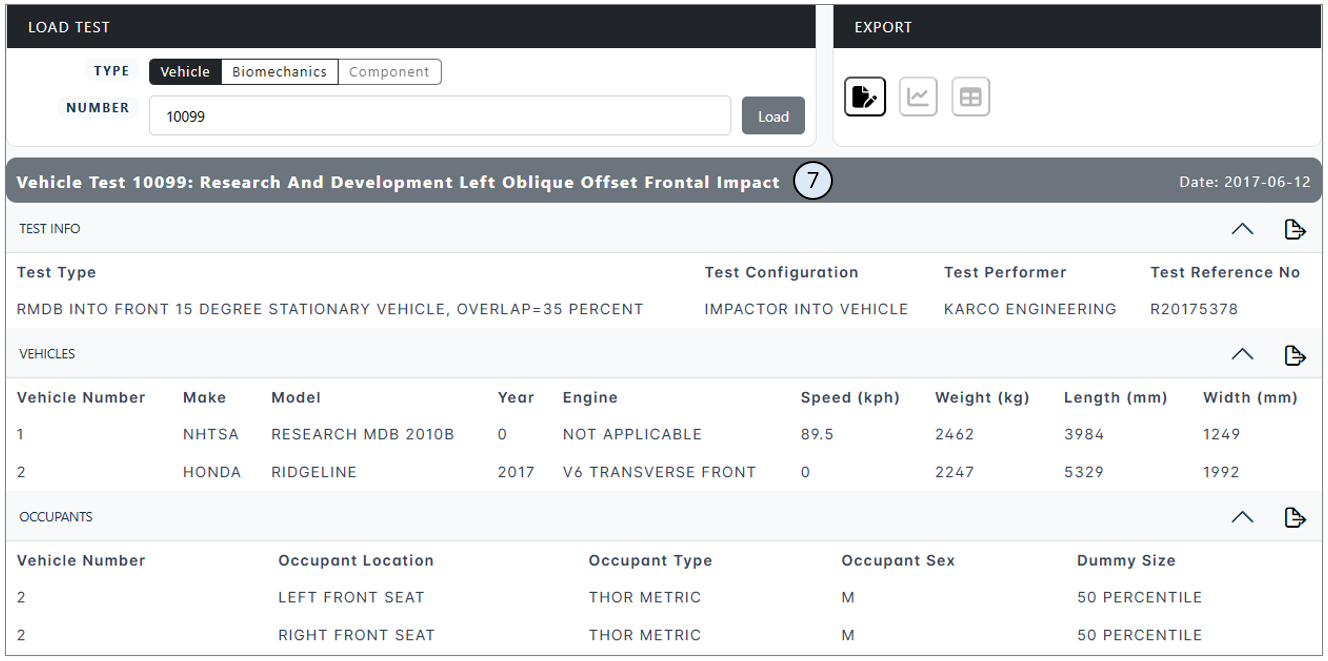
- When the test is loaded, the corresponding test, vehicle, and occupant information is displayed
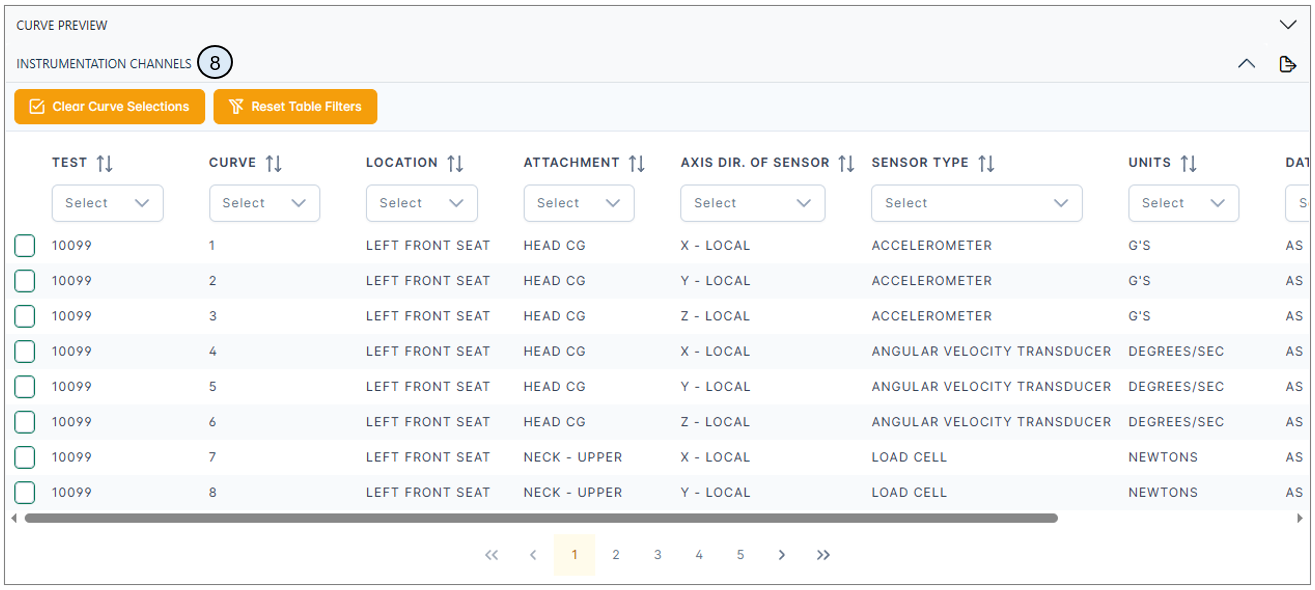
- All instrumentation channels associated with tests are displayed. Users can select from these channels to plot the signals or perform a specific function with the selected channel or channels (see 9 below).
Plotting Signal
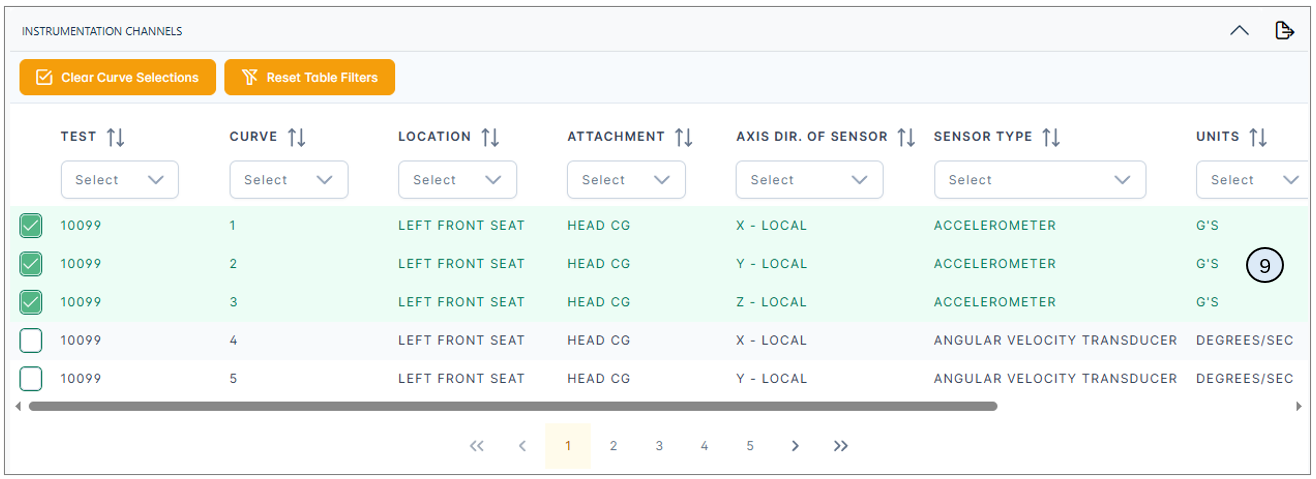
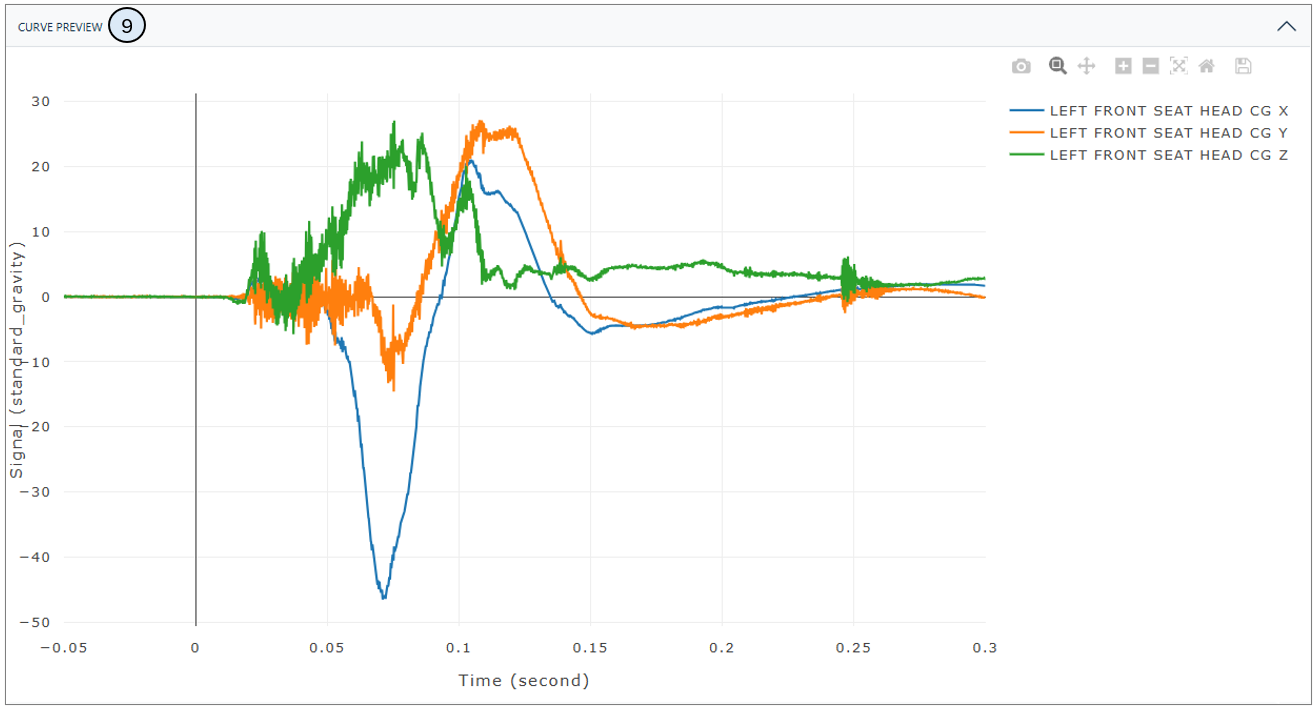
- Selected instrumentation channels are plotted in the curve preview section above the instrumentation channels section. Multiple channels are able to be plotted at once.
Injury Metrics Button Activation Criteria
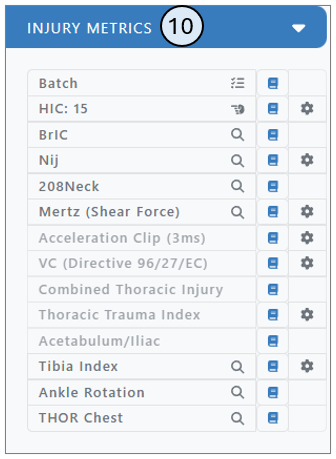
- Once a test is loaded, some of the injury metric buttons will activate. The Acceleration Clip, VC, Combined Thoracic Injury, Thoracic Trauma Index, and Acetabulum/Iliac buttons have additional criteria that must be met before the button becomes activated.
Activation Criteria
| Injury Metric | Applicable ATDs | Required Signals |
|---|---|---|
| HIC: 15 | Applicable to all instrumented ATDs | Head CG linear acceleration (ax, ay, az) |
| BrIC | Applicable to all instrumented ATDs | Head CG angular velocity (wx, wy, wz) |
| Nij | Applicable to all instrumented ATDs | Neck flexion/extension moment (Y), neck tension/compression force (Z) |
| 208Neck | Applicable to all instrumented ATDs | Neck force (X or Z) or neck moment (Y) |
| Mertz | Applicable to all instrumented ATDs | Neck force (X, Z), neck flexion/extension moment (Y) |
| Acceleration Clip (3ms) | Applicable to all instrumented ATDs | Configure sensor attachment and CFC filter in settings |
| Viscous Criterion | Hybrid-III (50th Male, 95th Male, 5th Female, 6 year old, 3 year old), EuroSID, SID-IIs | Sternum/chest/rib deflection (X or Y), rib acceleration (Y), spine acceleration (Y) |
| Combined Thoracic Injury | Hybrid-III, EuroSID, WorldSID, BioSID, THOR LX legs | Upper & lower rib acceleration (Y), lower spine acceleration (Y) |
| Thoracic Trauma Index | Hybrid-III, EuroSID, WorldSID, BioSID, THOR LX legs | Upper & lower rib acceleration (Y), lower spine acceleration (Y) |
| Acetabulum/Iliac Force | SID IIs | Pelvis iliac force (Y), acetabulum force (Y) |
| Femur Force | Applicable to all instrumented ATDs | Left or right femur force (Z) |
| Tibia Force | Applicable to all instrumented ATDs | Left or right tibia force (Z) |
| Tibia Index | Hybrid-III (50th Male, 95th Male, 5th Female), THOR (50th Male, 5th Female) | Tibia A-P moment (Y), L-M moment (X), axial force (Z) |
| Ankle Rotation | Applicable to all instrumented ATDs | Left & right ankle rotation (X, Y, Z) |
| THOR Deflection Visualization | THOR (50th Male or 5th Female) | Upper/lower chest IR-TRACCs (X, Y, Z) |
Curve Selection Icon
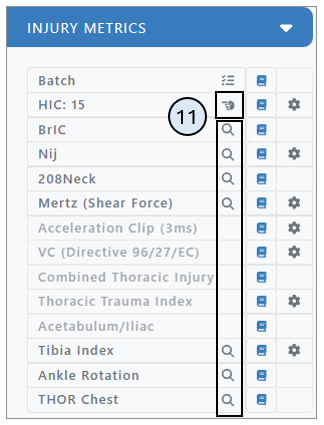
- The Magnifying Glass icon helps users locate all relevant curves needed for a specific injury metric. The Pointer Finger icon appears next to an injury metric button once all required curves have been manually selected, indicating readiness for calculation.
Results Tab
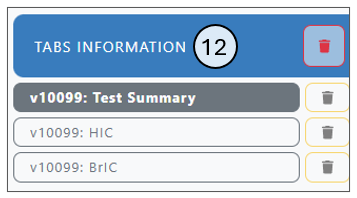
- After selecting a load test and either an injury metric or a vehicle analysis calculation, users will see the results displayed under the Tabs Information section. Within this section, users can click on a calculation to view a summary of the metric and related figures.
Viewing Multiple Occupants & Tests

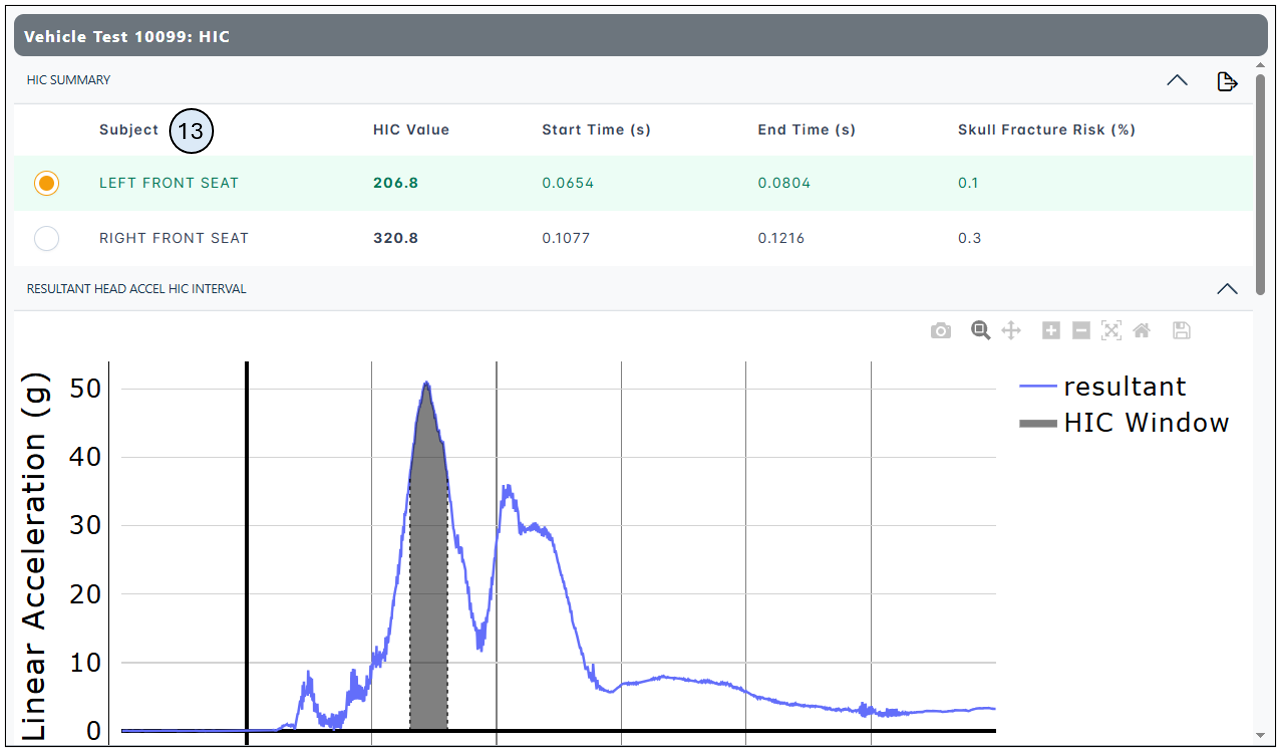
- When there are multiple occupants in a test, all occupants and their location will appear in the Occupants tab once a test is loaded. When an injury metric is calculated for a test, the injury metric will be calculated for all occupants associated with the test. Users are able to see the injury metric calculation results and toggle between figures generated for occupants results.
Batch Processing Function
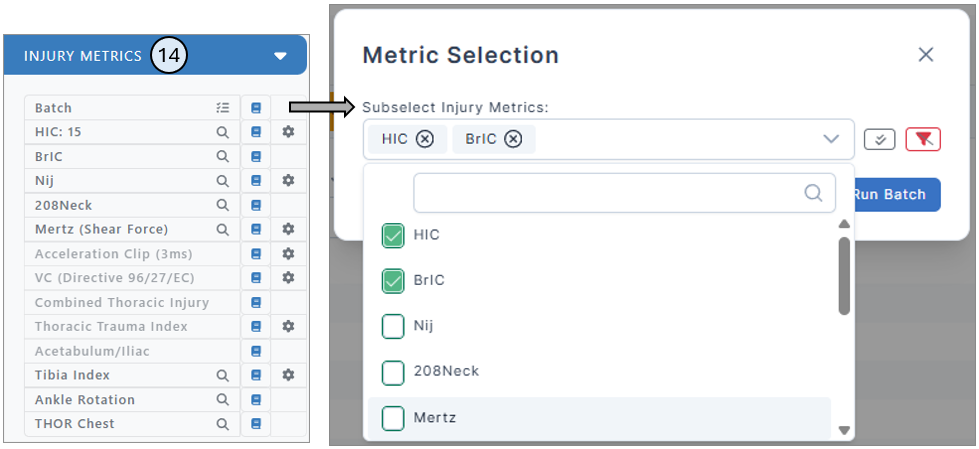
- After selecting a load test, users can click the Batch button in the Injury Metrics section and choose what injury metric tests they wish to calculate. This feature streamlines the process by allowing multiple metrics to be computed at once, instead of using individual buttons.
Exporting Results
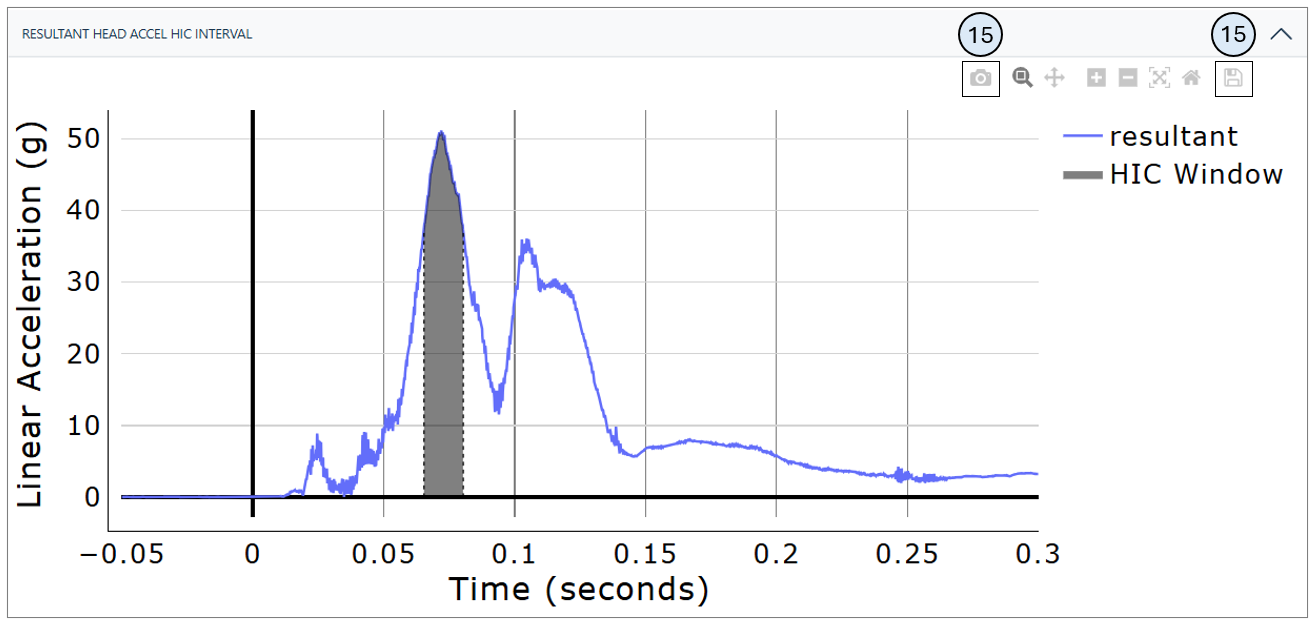
- Once a figure is created, the figure image can be downloaded by selecting the camera icon or the data can be downloaded to a csv file by selecting the floppy disk icon.
Report Generator
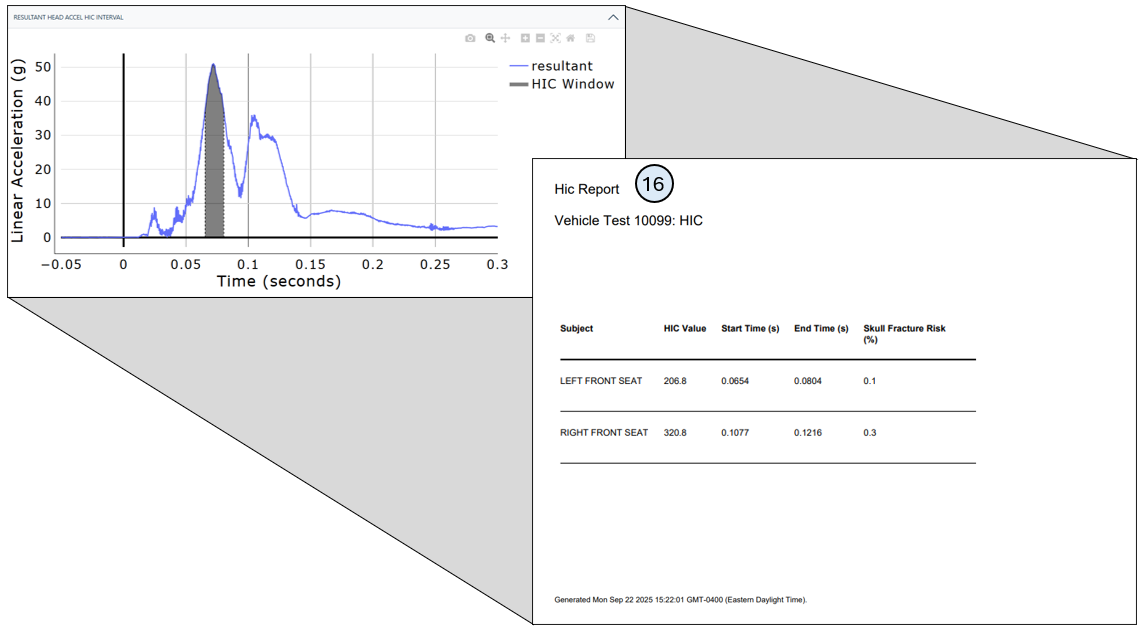
- A report can be generated using the paper & pencil icon in the export section. This report will include the vehicle test number and all results from any injury metric figures calculated.